CSS
参考
其他相关笔记
重点章节
介绍
- CSS 指层叠样式表 (Cascading Style Sheets)
- 样式定义如何显示 HTML 元素
- 样式通常存储在样式表中
- 把样式添加到 HTML 4.0 中,是为了解决内容与表现分离的问题
- 外部样式表可以极大提高工作效率
- 外部样式表通常存储在 CSS 文件中
- 多个样式定义可层叠为一个
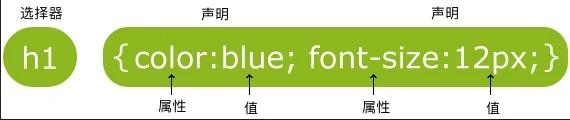
选择器
- id选择器:#
- class选择器:.
- 分级选择器: ,
- 嵌套选择器:空格
- 属性选择器:
p.center {text-align:center;}
/* 所有的 p 元素使用 class="center" 让该元素的文本居中 */
p{ }
/* 为所有 p 元素指定一个样式。 */
.marked{ }
/* 为所有 class="marked" 的元素指定一个样式。 */
.marked p{ }
/* 为所有 class="marked" 元素内的 p 元素指定一个样式。 */
p.marked{ }
/* 为所有 class="marked" 的 p 元素指定一个样式。 */
[title]
{
    color:blue;
}
/* 把包含标题(title)的所有元素变为蓝色 */
[title=runoob]
{
    border:5px solid green;
}
/* 改变标题title='runoob'元素的边框样式 */
input[type="text"]
{
    width:150px;
    display:block;
    margin-bottom:10px;
    background-color:yellow;
}
input[type="button"]
{
    width:120px;
    margin-left:35px;
    display:block;
}
/* 表单样式 */
如何插入
插入样式表的方法有三种:
- 外部样式表(External style sheet)
- 内部样式表(Internal style sheet)
- 内联样式(Inline style)
外部:
<head>
<link rel="stylesheet" type="text/css" href="mystyle.css">
</head>
内部:
<head>
<style>
hr {color:sienna;}
p {margin-left:20px;}
body {background-image:url("images/back40.gif");}
</style>
</head>
内联样式:
<p style="color:sienna;margin-left:20px">这是一个段落。</p>
优先级
(内联样式)Inline style > (内部样式)Internal style sheet >(外部样式)External style sheet > 浏览器默认样式
!important 与优先级无关,但它与最终的结果直接相关,使用一个 !important 规则时,此声明将覆盖任何其他声明。
使用 !important 是一个坏习惯,应该尽量避免,因为这破坏了样式表中的固有的级联规则 使得调试找 bug 变得更加困难了。
常用属性
背景
- backgroud
body {background:#ffffff url('img_tree.png') no-repeat right top;}顺序与下同 - background-color
- background-image
body {background-image:url('paper.gif');}默认会平铺开来 - background-repeat
background-repeat:repeat-x;水平方向平铺- no-repeat
- repeat-x
- repeat-y
- background-attachment
- background-position
background-position:right top;
文本
- color
- text-align
- vertical-align(表格中可能使用)
- border
- text-decoration
- text-transform
- text-indent
h1 {text-align:center;}
p.date {text-align:right;}
p.main {text-align:justify;}
text-decoration
h1 {text-decoration:overline;}
h2 {text-decoration:line-through;}
h3 {text-decoration:underline;}
text-transform
p.uppercase {text-transform:uppercase;}
p.lowercase {text-transform:lowercase;}
p.capitalize {text-transform:capitalize;}
text-indent
p {text-indent:50px;}
font
- font-family
- font-style
- font-size
- px
- em
- %
- font-weight
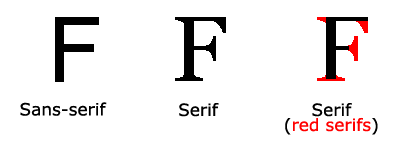
| Generic family | 字体系列 | 说明 |
|---|---|---|
| Serif | Times New Roman | Georgia |
| Sans-serif | Arial | Verdana |
| Monospace | Courier New | Lucida Console |
p{font-family:"Times New Roman", Times, serif;}
p.normal {font-style:normal;}
p.italic {font-style:italic;}
p.oblique {font-style:oblique;}
链接
- a:link - 正常,未访问过的链接
- a:visited - 用户已访问过的链接
- a:hover - 当用户鼠标放在链接上时
- a:active - 链接被点击的那一刻
a:link {text-decoration:none;}
a:visited {text-decoration:none;}
a:hover {text-decoration:underline;}
a:active {text-decoration:underline;}
列表
- list-style
- list-style-tyle
- list-syle-position
- inside
- outside(default)
- list-style-image
尺寸
- height
- width
- max-
- min-
display
visibility: hidden;仍占位置display: none;不占位置display
- inline
- block
盒子模型
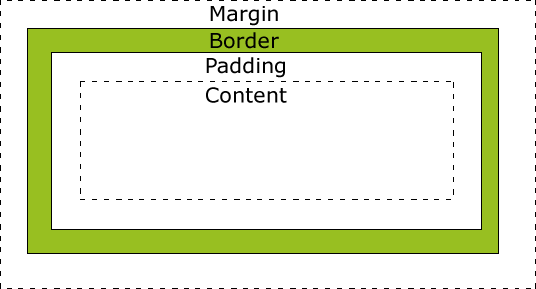
- Margin(外边距) - 清除边框外的区域,外边距是透明的。
- Border(边框) - 围绕在内边距和内容外的边框。
- Padding(内边距) - 清除内容周围的区域,内边距是透明的。
- Content(内容) - 盒子的内容,显示文本和图像。
border
border
- border-width
- border-style
- solid
- dotted
- border-top/right/bottom/left-style
- color
border-style属性可以有1-4个值:
border-style:dotted solid double dashed;
- 上边框是 dotted
- 右边框是 solid
- 底边框是 double
- 左边框是 dashed
border-style:dotted solid double;
上边框是 dotted
- 左、右边框是 solid
- 底边框是 double
border-style:dotted solid;
- 上、底边框是 dotted
- 右、左边框是 solid
border-style:dotted;
- 四面边框是 dotted
border-style:属性1,属性2,属性3,属性4
上->右->下->左
border-style:属性1,属性2,属性3
上->左右->下
border-style:属性1,属性2
上下->左右
border-style:属性1
对齐
- 元素居中:
margin:auto;
.center {
    margin: auto;
    width: 50%;
    border: 3px solid green;
    padding: 10px;
}
注意: 如果没有设置 width 属性(或者设置 100%),居中对齐将不起作用。
- 文本居中:
text-align: center; - 图片居中:使用
margin: auto;并将它放到 块 元素中
img {
    display: block;
    margin: auto;
    width: 40%;
}
- 左右对齐
注释:绝对定位元素会被从正常流中删除,并且能够交叠元素。
提示: 当使用 position 来对齐元素时, 通常 <body> 元素会设置 margin 和 padding 。 这样可以避免在不同的浏览器中出现可见的差异。
.right {
    position: absolute;
    right: 0px;
    width: 300px;
    border: 3px solid #73AD21;
    padding: 10px;
}
定位
- position
- static: HTML 元素的默认值,即没有定位,遵循正常的文档流对象。静态定位的元素不会受到 top, bottom, left, right影响。
- relative:相对其正常位置进行移动
- fixed: 元素的位置相对于浏览器窗口是固定位置。即使窗口是滚动的它也不会移动。相对窗口进行定位。
- absolute:绝对定位的元素的位置相对于最近的已定位父元素,如果元素没有已定位的父元素,那么它的位置相对于<html>absolute 定位使元素的位置与文档流无关,因此不占据空间。absolute 定位的元素和其他元素重叠。
- sticky:粘性定位的元素是依赖于用户的滚动,在 position:relative 与 position:fixed 定位之间切换。
p.pos_fixed
{
    position:fixed;
    top:30px;
    right:5px;
}
高级特性
伪类
- :first-child
伪元素
- :first-line
- :first-letter
- :before 本网站使用此伪元素在所有的heading前面加上了一个链接
- :after
h1:after
{
    content:url(smiley.gif);
}